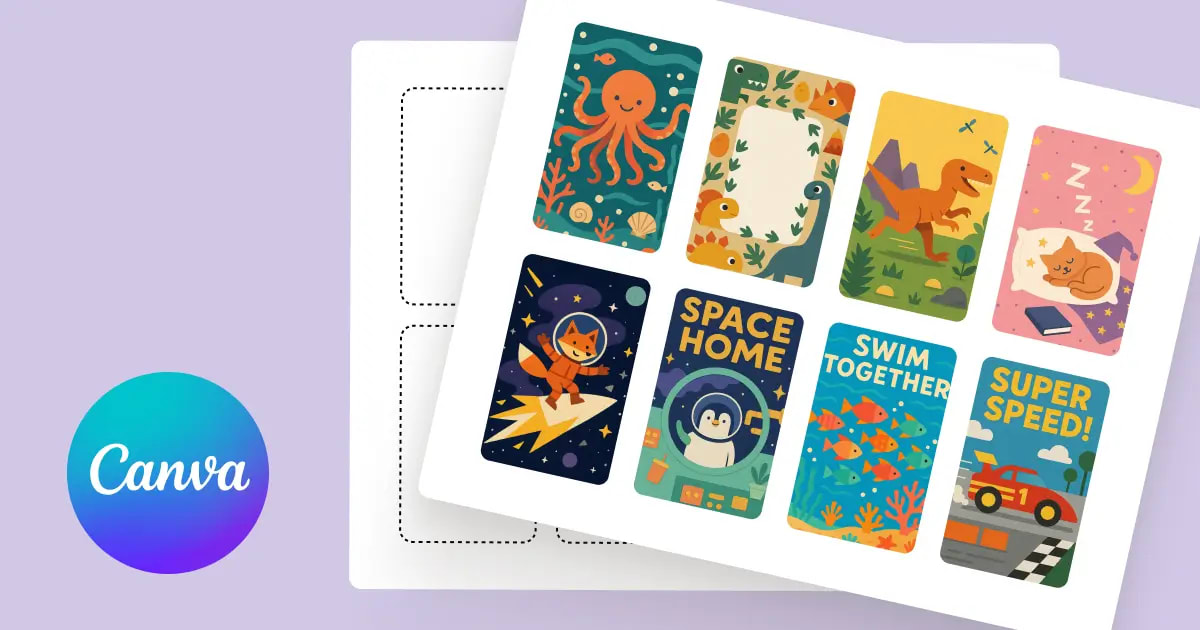
Yoto Labels logo - Free Yoto card label generator
ShowcaseAboutFeedback
Yoto Labels logo - Free Yoto card label generator
Support the toolThanks so much!307267Support307267
HomeGuidesShowcaseAboutFeedback
David and Elias

Thanks for thinking of supporting us

David & Elias

Support the tool307267

On this sheet

  • When Canva Makes Sense for Yoto Labels
  • Configuring Canva Canvas
  • Getting Dimensions Right
  • Setting Up Safety Margins (Recommended)
  • Building Your Label Design
  • Downloading Your Design
  • Why I Created an Alternative Tool
  1. All Guides
  2. /Making labels

Canva Template for Yoto MYO Labels

DavidDavid
·Updated August 2026
Canva Template for Yoto MYO Labels

Created about 20 Yoto labels using Canva before switching methods. It's solid when you want complete creative control over layout and text. Expect 12-15 minutes per card once you've learned the process.

The short version: Configure Canva canvas to 54mm × 85.6mm (roughly 2.1" × 3.4"), build your design, export as PDF. Or bypass Canva and use a tool that handles sizing automatically in under 3 minutes.

When Canva Makes Sense for Yoto Labels

Canva works well when you:

  • Need precise control over text positioning and multiple graphics
  • Like the creative design process
  • Have 12-15 minutes to spend per card

Why I moved to an automated approach:

  • Recreating the same canvas dimensions got repetitive
  • Every image needed manual cropping and sizing
  • Had to remember correct export format each time
  • Built something that eliminates these steps

Standard free Canva is sufficient. Premium subscription unnecessary for Yoto MYO label creation.

Configuring Canva Canvas

Getting Dimensions Right

For millimeter precision (recommended):

  1. Navigate to Canva.com
  2. Select "Create a design" → "Custom size"
  3. Input: 54 × 85.6 mm
  4. Verify units show mm, not inches or px

Using inches instead:

  • Width: 2.1"
  • Height: 3.4"

Millimeter measurements match exact Yoto card dimensions more accurately.

Setting Up Safety Margins (Recommended)

Text closer than 6mm (0.25") to edges risks getting trimmed during cutting.

In Canva:

  1. Go to File > Settings > Show rulers and guides (or press Shift + R)
  2. Pull guide lines from rulers
  3. Position guides roughly 6mm inside each edge
  4. Keep all text within these boundaries

Building Your Label Design

Import images or select from Canva's library. Add text elements as desired. Simple designs work best—kids recognize cards by main visuals, not elaborate layouts.

Effective approaches:

  • Single dominant image
  • Large, readable title text
  • Clean background color

What to avoid:

  • Cluttered compositions (overwhelming for children)
  • Tiny text (unreadable from distance)
  • Complex backgrounds (obscures main image)

You'll need something to print on. Parents use different methods—vinyl sticker paper holds up well to handling, matte sticker paper costs less, some use photo paper for nicer finish. We started with regular sticker paper and it worked fine. Some parents even print on regular paper and use clear tape.

Downloading Your Design

When design is complete:

  1. Click "Share" → "Download"
  2. Select file type: PDF Print (not PNG or JPG)
  3. Hit Download

PDF Print format delivers optimal print quality. PNG and JPG files work but produce less crisp results.

Why I Created an Alternative Tool

After producing 20 labels through Canva, these steps became tedious:

  • Recreating identical 54 × 85.6mm canvas repeatedly
  • Cropping and resizing each image manually
  • Remembering to choose "PDF Print" format
  • Investing 12-15 minutes per single label

Developed a tool completing this in under 3 minutes. Drop in any photo, it handles dimensions, you print. Solved my own problem.
Next in making labels
Yoto Card Size & Dimensions

Yoto MYO card dimensions are 54mm × 85.6mm (2.1\" × 3.4\" in inches). Get exact Yoto card measurements for Canva, plus a free tool that auto-sizes labels.

→
Also worth a look
  • Yoto Label Size Guide→
  • Yoto Card Templates→
Free Yoto label maker

Make printable MYO labels

Add an image or pick a template. Get a PDF sized for Yoto cards, ready to print at home.

Create Labels →

Hi, I'm David. I built this free tool for my kid's MYO cards. Add a pic or pick a template, print a PDF that actually fits.

Make some labels →

The tool

  • Make labels
  • See what others made
  • Browse the guides

How-tos

  • Using the tool
  • Getting started with MYO
  • Making labels at home
  • Organizing your cards

Around here

  • Why this exists
  • Send feedback
  • Buy me a coffee
  • Privacy
© 2026 YotoLabels.comNot affiliated with Yoto Ltd.
Yoto Labels logo - Free Yoto card label generator
ShowcaseAboutFeedback
Yoto Labels logo - Free Yoto card label generator
Support the toolThanks so much!307267Support307267
HomeGuidesShowcaseAboutFeedback
David and Elias

Thanks for thinking of supporting us

David & Elias

Support the tool307267

On this sheet

  • When Canva Makes Sense for Yoto Labels
  • Configuring Canva Canvas
  • Getting Dimensions Right
  • Setting Up Safety Margins (Recommended)
  • Building Your Label Design
  • Downloading Your Design
  • Why I Created an Alternative Tool
  1. All Guides
  2. /Making labels

Canva Template for Yoto MYO Labels

DavidDavid
·Updated August 2026
Canva Template for Yoto MYO Labels

Created about 20 Yoto labels using Canva before switching methods. It's solid when you want complete creative control over layout and text. Expect 12-15 minutes per card once you've learned the process.

The short version: Configure Canva canvas to 54mm × 85.6mm (roughly 2.1" × 3.4"), build your design, export as PDF. Or bypass Canva and use a tool that handles sizing automatically in under 3 minutes.

When Canva Makes Sense for Yoto Labels

Canva works well when you:

  • Need precise control over text positioning and multiple graphics
  • Like the creative design process
  • Have 12-15 minutes to spend per card

Why I moved to an automated approach:

  • Recreating the same canvas dimensions got repetitive
  • Every image needed manual cropping and sizing
  • Had to remember correct export format each time
  • Built something that eliminates these steps

Standard free Canva is sufficient. Premium subscription unnecessary for Yoto MYO label creation.

Configuring Canva Canvas

Getting Dimensions Right

For millimeter precision (recommended):

  1. Navigate to Canva.com
  2. Select "Create a design" → "Custom size"
  3. Input: 54 × 85.6 mm
  4. Verify units show mm, not inches or px

Using inches instead:

  • Width: 2.1"
  • Height: 3.4"

Millimeter measurements match exact Yoto card dimensions more accurately.

Setting Up Safety Margins (Recommended)

Text closer than 6mm (0.25") to edges risks getting trimmed during cutting.

In Canva:

  1. Go to File > Settings > Show rulers and guides (or press Shift + R)
  2. Pull guide lines from rulers
  3. Position guides roughly 6mm inside each edge
  4. Keep all text within these boundaries

Building Your Label Design

Import images or select from Canva's library. Add text elements as desired. Simple designs work best—kids recognize cards by main visuals, not elaborate layouts.

Effective approaches:

  • Single dominant image
  • Large, readable title text
  • Clean background color

What to avoid:

  • Cluttered compositions (overwhelming for children)
  • Tiny text (unreadable from distance)
  • Complex backgrounds (obscures main image)

You'll need something to print on. Parents use different methods—vinyl sticker paper holds up well to handling, matte sticker paper costs less, some use photo paper for nicer finish. We started with regular sticker paper and it worked fine. Some parents even print on regular paper and use clear tape.

Downloading Your Design

When design is complete:

  1. Click "Share" → "Download"
  2. Select file type: PDF Print (not PNG or JPG)
  3. Hit Download

PDF Print format delivers optimal print quality. PNG and JPG files work but produce less crisp results.

Why I Created an Alternative Tool

After producing 20 labels through Canva, these steps became tedious:

  • Recreating identical 54 × 85.6mm canvas repeatedly
  • Cropping and resizing each image manually
  • Remembering to choose "PDF Print" format
  • Investing 12-15 minutes per single label

Developed a tool completing this in under 3 minutes. Drop in any photo, it handles dimensions, you print. Solved my own problem.
Next in making labels
Yoto Card Size & Dimensions

Yoto MYO card dimensions are 54mm × 85.6mm (2.1\" × 3.4\" in inches). Get exact Yoto card measurements for Canva, plus a free tool that auto-sizes labels.

→
Also worth a look
  • Yoto Label Size Guide→
  • Yoto Card Templates→
Free Yoto label maker

Make printable MYO labels

Add an image or pick a template. Get a PDF sized for Yoto cards, ready to print at home.

Create Labels →

Hi, I'm David. I built this free tool for my kid's MYO cards. Add a pic or pick a template, print a PDF that actually fits.

Make some labels →

The tool

  • Make labels
  • See what others made
  • Browse the guides

How-tos

  • Using the tool
  • Getting started with MYO
  • Making labels at home
  • Organizing your cards

Around here

  • Why this exists
  • Send feedback
  • Buy me a coffee
  • Privacy
© 2026 YotoLabels.comNot affiliated with Yoto Ltd.