Spent way too many Saturdays wrestling with Yoto MYO card sizes in Canva. My son would pick a theme (dinosaurs that week), I'd find a cool image, then spend 20 minutes trying to get it to exactly fit. Sometimes the label would be too big and overhang the edges. Sometimes too small with white showing around it. Always annoying.
Built a tool that just handles this automatically. You upload any image, it sizes it right, you print. That's it.
Exact Yoto Card Measurements
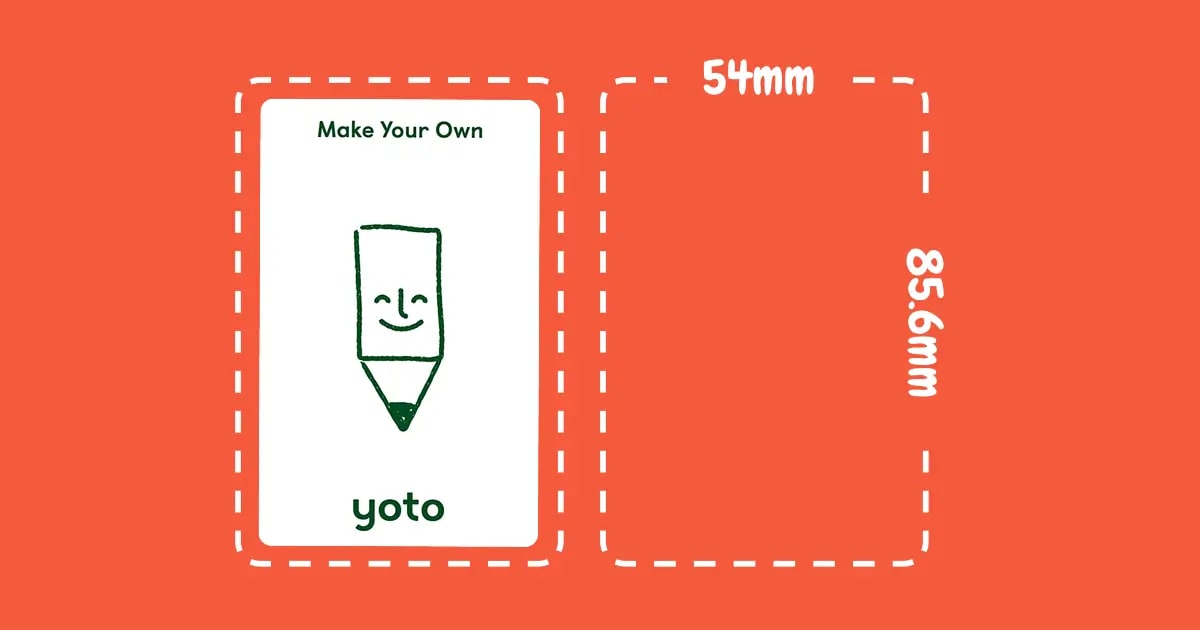
What size are Yoto cards? Here are the exact measurements:
Yoto card size in millimeters:
- Width: 54mm
- Height: 85.6mm
- Thickness: 0.76mm (credit card thickness)
- Corner radius: 3.18mm (slightly rounded corners)
Yoto card size in inches:
- Width: 2.126 inches (about 2.1")
- Height: 3.370 inches (about 3.4")
Common mistake: People say Yoto MYO cards are exactly 2" × 3.5" because they're "business card size." Not quite. Standard US business cards are 50.8mm × 88.9mm. Close, but if you design for exact business card dimensions, your labels will be a bit off.
Yoto Card Dimensions for Different Tools
If you need Yoto card measurements in different units:
Yoto card dimensions in millimeters (most precise):
- 54mm × 85.6mm
Yoto card dimensions in inches:
- 2.126" × 3.370" (or round to 2.1" × 3.4")
Yoto card dimensions in centimeters:
- 5.4cm × 8.56cm
Yoto card dimensions for Canva:
- Canvas size: 54mm × 85.6mm (or 2.1" × 3.4")
- At 300 DPI: 638 × 1012 pixels
- Corner radius: 3.18mm if you want rounded corners
Why This Matters
Getting the size wrong is frustrating:
- Labels bigger than the card peel at the edges
- Labels too small leave white showing (looks homemade)
- Wonky alignment my son notices immediately
- Wasted paper when you have to reprint
- Extra 15 minutes per card trying to trim things perfectly
Got tired of this. The tool just makes it the right size automatically. Upload image, get perfectly sized PDF, print. Saved a lot of Saturday mornings.
"Is It Just Business Card Size?"
Sort of, but not exactly. Tried using business card templates early on—they were close but not quite right.
Size comparison:
| What? | Width | Height | Works? |
|---|---|---|---|
| Yoto Card | 54mm | 85.6mm | ✅ This is what we want |
| US Business Card | 50.8mm | 88.9mm | ⚠️ Close (bit narrower, bit taller) |
| Credit Card | 85.6mm | 53.98mm | ❌ Wrong shape (wider, shorter) |
Business card paper can work, but the sizing won't be perfect. Credit card templates definitely won't work (different aspect ratio).
The tool handles this automatically. You don't need to figure out which template is "close enough."
Setting Up Yoto Card Dimensions in Canva
For people who want to design Yoto card labels from scratch:
Yoto card dimensions Canva setup:
- Canvas size: 54mm × 85.6mm (or 2.1" × 3.4")
- Resolution: 300 DPI works fine (I use this)
- For edge-to-edge: add 3mm bleed around all sides
- Keep text at least 6mm from edges (or it gets cut off)
Steps for Canva:
- Create custom size
- Enter 54 × 85.6 (make sure it's set to mm)
- Design your thing
- Export as PDF
This works. But honestly, it's still 10-15 minutes of setup and tweaking every time. The tool skips all that. (Full Canva tutorial here if you want step-by-step.)
Skip the Size Math
Built the tool specifically to avoid all this size calculation stuff.
Works with these paper types:
- Letter paper (8.5" × 11") - fits 9 labels
- Legal paper (8.5" × 14") - fits 12 labels
- A4 paper - fits 9 labels
- A5 paper - fits 4 labels
- 4×6 photo paper - fits 2 labels
- Canon Ivy, HP Sprocket, other photo printers
The tool calculates how many labels fit on your paper and spaces them out right. You just print and cut.
What Paper to Use
Regular printer paper (Letter or A4) works. You get 9 labels per sheet.
We started simple—printed on regular sticker paper. Worked fine. Many parents use vinyl sticker paper now. Costs a bit more but survives sticky kid hands better. Matte sticker paper is cheaper and also holds up well.
Some people just print on regular paper and use clear tape to stick them on. Works if you don't want to buy sticker paper.
Photo paper makes labels look nicer. More expensive per label but some parents like the quality.
Quick Unit Conversions
Same size, different units:
- Millimeters: 54 × 85.6mm (most precise)
- Inches: 2.1" × 3.4" (rounded)
- Centimeters: 5.4 × 8.56cm
- Pixels: 638 × 1012px (at 300 DPI)
Use whatever makes sense for your design tool. The tool converts automatically when you download the PDF.
What Works for Label Designs
Things I learned making 50+ cards with my son:
Design stuff:
- Use big, clear images kids recognize quickly
- Add text with the title (he can't read all of them yet but helps)
- High contrast helps (dark text on light, not gray on gray)
- Simple designs work better than busy ones
Organization:
- Color coding by type helps (we use blue for stories, green for music)
- Numbers if you have a series
- His name on travel cards so they don't get lost
Technical:
- Print at 300 DPI or higher (looks sharper)
- Check printer settings are set to 100% scale (not "fit to page")
- Test one label before printing 9 and wasting paper
- Leave a bit of margin around text or it gets cut off
Try It Out
If you want to skip the sizing math and Canva setup, the tool just handles it. Upload an image, pick your paper size, get a PDF. Takes about 2 minutes.