Yoto Labels logo - Free Yoto card label generator
ShowcaseAboutFeedback
Yoto Labels logo - Free Yoto card label generator
Support the toolThanks so much!307267Support307267
HomeGuidesShowcaseAboutFeedback
David and Elias

Thanks for thinking of supporting us

David & Elias

Support the tool307267

On this sheet

  • Where to find it
  • Label size
  • Custom label size
  • Paper size
  • Smaller paper often fits fewer labels
  • How the two work together
  1. All Guides
  2. /How to use Yoto Labels

Label and paper size

DavidDavid
·Updated August 2026
Label and paper size

Two controls sit together in the editor under Label and paper size: how big each label is, and what sheet you’re printing on. Get those right before you export and you skip a lot of reprinting.

Where to find it

In the editor, find the section called Label and paper size. That’s where you pick how big each label should be, and what paper you’re printing on.

There’s also a small mm / in switch if you’d rather see sizes in inches. Same settings either way.

Label size

This sets how big each label is on the sheet.

Your browser does not support embedded video.
  • Yoto Card: the standard MYO card face (54 × 85.6 mm). Use this for labels that stick straight onto the card.
  • Library Pouch: a smaller insert size for pouch-style systems where the art slides in.
  • Thumbnails: smaller again, when you want more mini labels on one page.
  • Custom: your own width and height (more on that below).

When you change label size, the sheet preview updates, and so does how many labels fit on the paper you picked.

Custom label size

Need something that isn’t one of the presets? You can save your own size and reuse it.

Your browser does not support embedded video.
  1. 1

    Open the label size menu

    Under Label and paper size.

  2. 2

    Choose + Custom Label Size

    At the bottom of the list.

  3. 3

    Give it a name

    Something you'll recognise later, like Mini cards.

  4. 4

    Set width and height

    Use mm or in with the toggle in the form. The allowed range is shown underneath the fields. Custom sizes can't be larger than a standard Yoto card.

  5. 5

    Select Create

    Your new size appears in the label size menu and stays saved in your browser for next time.

After that, pick it from the label size menu like any other option. You can come back and edit a saved custom size later if the measurements need a tweak.

Paper size

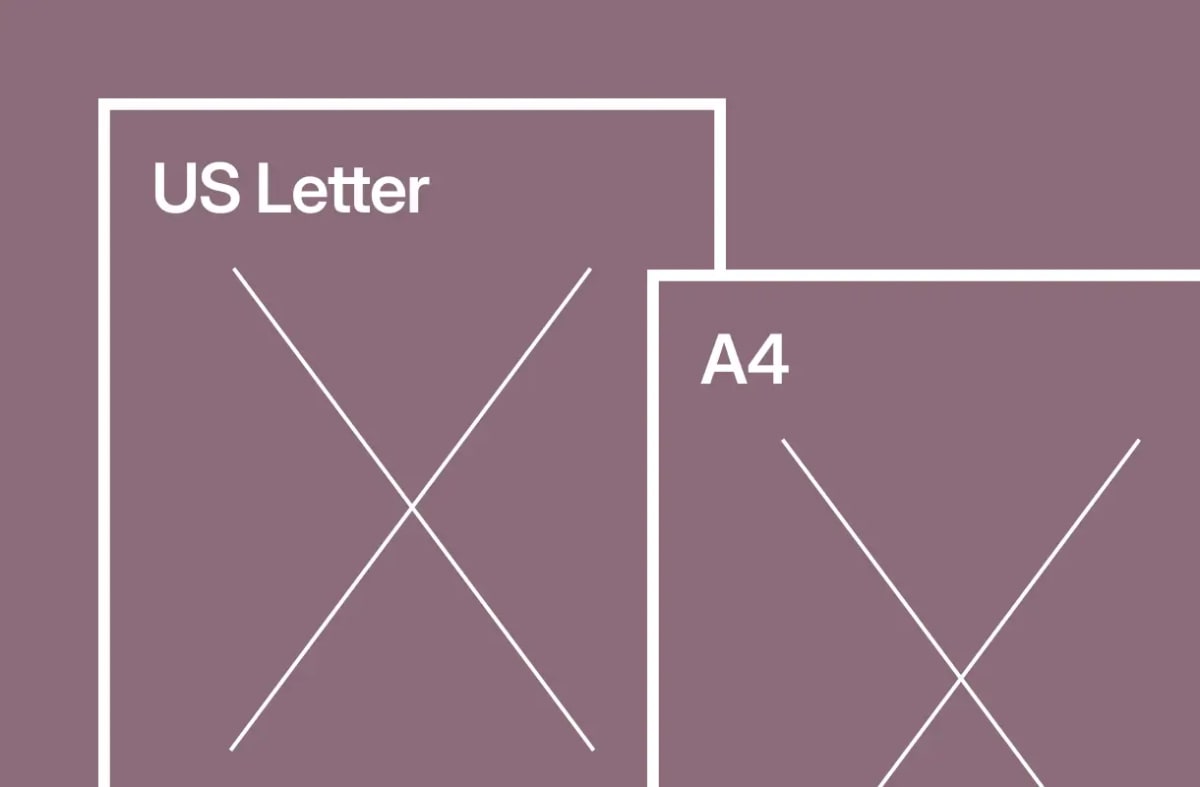
This is the sheet (or photo printer paper) you’ll print on. Each option shows how many labels fit, like US Letter (9 labels).

Your browser does not support embedded video.

For a regular home printer you’ll usually pick from:

  • A4: common in the UK, Europe, and most of the world
  • A5 and A6: smaller sheets if that’s what you have
  • US Letter: the usual size in the US and Canada
  • US Legal: longer than Letter, if that’s what your printer is set up for
  • US 4×6 Photo: a small photo sheet

If you use a Cricut or a pocket photo printer (Canon Ivy, HP Sprocket, and similar), those options show up in the same menu when you’re on the standard Yoto Card size.

Note

If you’re on Library Pouch, Thumbnails, or a custom size, you’ll only see the home printer list. Switch back to Yoto Card if you need Cricut or photo printer sizes.

If you’re not sure, pick whatever paper your printer normally uses. Keep that same size in your printer tray and in the print dialog when you print.

Smaller paper often fits fewer labels

If you switch to a size with fewer slots (for example A4 down to A5) and some of your filled labels would leave the current view, you’ll get a confirmation first. Your work isn’t deleted. It’s saved, and those labels show up again if you switch back to a larger layout.
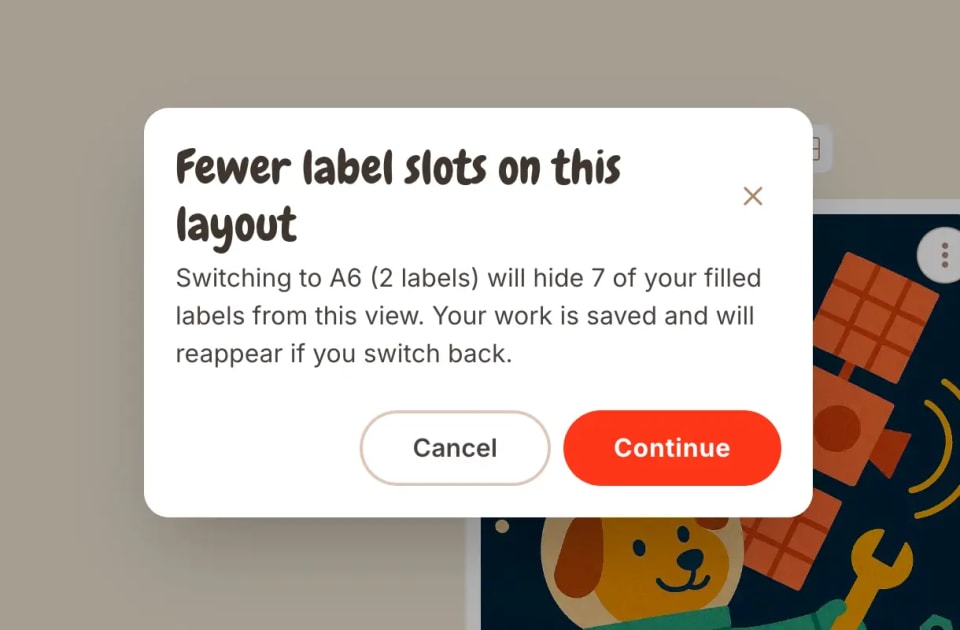
Confirmation dialog when switching to a paper size that fits fewer label slots

How the two work together

Label size is the sticker. Paper size is the page. Together they decide how many labels land on each sheet. When you export, print at 100% scale. “Fit to page” shrinks everything, and the labels won’t match the card.

Frequently asked questions

Next in how to use yoto labels
How to export your labels

Use the recommended export setup, or change file format, full bleed, and cut guides before you generate.

→
Also worth a look
  • Yoto Card Size & Dimensions→
  • Yoto Label Size Guide→
Free Yoto label maker

Make printable MYO labels

Add an image or pick a template. Get a PDF sized for Yoto cards, ready to print at home.

Create Labels →

Hi, I'm David. I built this free tool for my kid's MYO cards. Add a pic or pick a template, print a PDF that actually fits.

Make some labels →

The tool

  • Make labels
  • See what others made
  • Browse the guides

How-tos

  • Using the tool
  • Getting started with MYO
  • Making labels at home
  • Organizing your cards

Around here

  • Why this exists
  • Send feedback
  • Buy me a coffee
  • Privacy
© 2026 YotoLabels.comNot affiliated with Yoto Ltd.
Yoto Labels logo - Free Yoto card label generator
ShowcaseAboutFeedback
Yoto Labels logo - Free Yoto card label generator
Support the toolThanks so much!307267Support307267
HomeGuidesShowcaseAboutFeedback
David and Elias

Thanks for thinking of supporting us

David & Elias

Support the tool307267

On this sheet

  • Where to find it
  • Label size
  • Custom label size
  • Paper size
  • Smaller paper often fits fewer labels
  • How the two work together
  1. All Guides
  2. /How to use Yoto Labels

Label and paper size

DavidDavid
·Updated August 2026
Label and paper size

Two controls sit together in the editor under Label and paper size: how big each label is, and what sheet you’re printing on. Get those right before you export and you skip a lot of reprinting.

Where to find it

In the editor, find the section called Label and paper size. That’s where you pick how big each label should be, and what paper you’re printing on.

There’s also a small mm / in switch if you’d rather see sizes in inches. Same settings either way.

Label size

This sets how big each label is on the sheet.

Your browser does not support embedded video.
  • Yoto Card: the standard MYO card face (54 × 85.6 mm). Use this for labels that stick straight onto the card.
  • Library Pouch: a smaller insert size for pouch-style systems where the art slides in.
  • Thumbnails: smaller again, when you want more mini labels on one page.
  • Custom: your own width and height (more on that below).

When you change label size, the sheet preview updates, and so does how many labels fit on the paper you picked.

Custom label size

Need something that isn’t one of the presets? You can save your own size and reuse it.

Your browser does not support embedded video.
  1. 1

    Open the label size menu

    Under Label and paper size.

  2. 2

    Choose + Custom Label Size

    At the bottom of the list.

  3. 3

    Give it a name

    Something you'll recognise later, like Mini cards.

  4. 4

    Set width and height

    Use mm or in with the toggle in the form. The allowed range is shown underneath the fields. Custom sizes can't be larger than a standard Yoto card.

  5. 5

    Select Create

    Your new size appears in the label size menu and stays saved in your browser for next time.

After that, pick it from the label size menu like any other option. You can come back and edit a saved custom size later if the measurements need a tweak.

Paper size

This is the sheet (or photo printer paper) you’ll print on. Each option shows how many labels fit, like US Letter (9 labels).

Your browser does not support embedded video.

For a regular home printer you’ll usually pick from:

  • A4: common in the UK, Europe, and most of the world
  • A5 and A6: smaller sheets if that’s what you have
  • US Letter: the usual size in the US and Canada
  • US Legal: longer than Letter, if that’s what your printer is set up for
  • US 4×6 Photo: a small photo sheet

If you use a Cricut or a pocket photo printer (Canon Ivy, HP Sprocket, and similar), those options show up in the same menu when you’re on the standard Yoto Card size.

Note

If you’re on Library Pouch, Thumbnails, or a custom size, you’ll only see the home printer list. Switch back to Yoto Card if you need Cricut or photo printer sizes.

If you’re not sure, pick whatever paper your printer normally uses. Keep that same size in your printer tray and in the print dialog when you print.

Smaller paper often fits fewer labels

If you switch to a size with fewer slots (for example A4 down to A5) and some of your filled labels would leave the current view, you’ll get a confirmation first. Your work isn’t deleted. It’s saved, and those labels show up again if you switch back to a larger layout.

Confirmation dialog when switching to a paper size that fits fewer label slots

How the two work together

Label size is the sticker. Paper size is the page. Together they decide how many labels land on each sheet. When you export, print at 100% scale. “Fit to page” shrinks everything, and the labels won’t match the card.

Frequently asked questions

Next in how to use yoto labels
How to export your labels

Use the recommended export setup, or change file format, full bleed, and cut guides before you generate.

→
Also worth a look
  • Yoto Card Size & Dimensions→
  • Yoto Label Size Guide→
Free Yoto label maker

Make printable MYO labels

Add an image or pick a template. Get a PDF sized for Yoto cards, ready to print at home.

Create Labels →

Hi, I'm David. I built this free tool for my kid's MYO cards. Add a pic or pick a template, print a PDF that actually fits.

Make some labels →

The tool

  • Make labels
  • See what others made
  • Browse the guides

How-tos

  • Using the tool
  • Getting started with MYO
  • Making labels at home
  • Organizing your cards

Around here

  • Why this exists
  • Send feedback
  • Buy me a coffee
  • Privacy
© 2026 YotoLabels.comNot affiliated with Yoto Ltd.