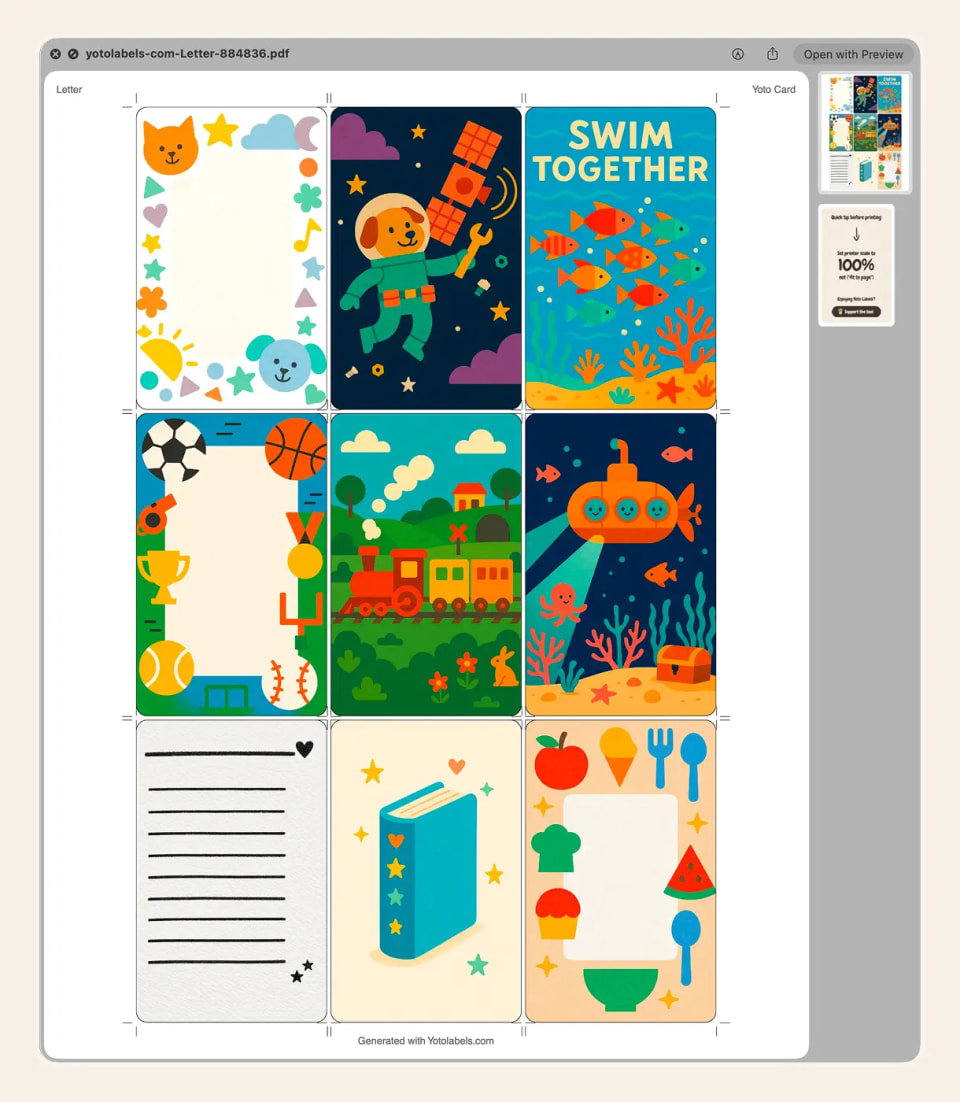
Recommended setup
By default, export is set to what works for most people:
- PDF file format
- Full bleed off
- Cut guides on
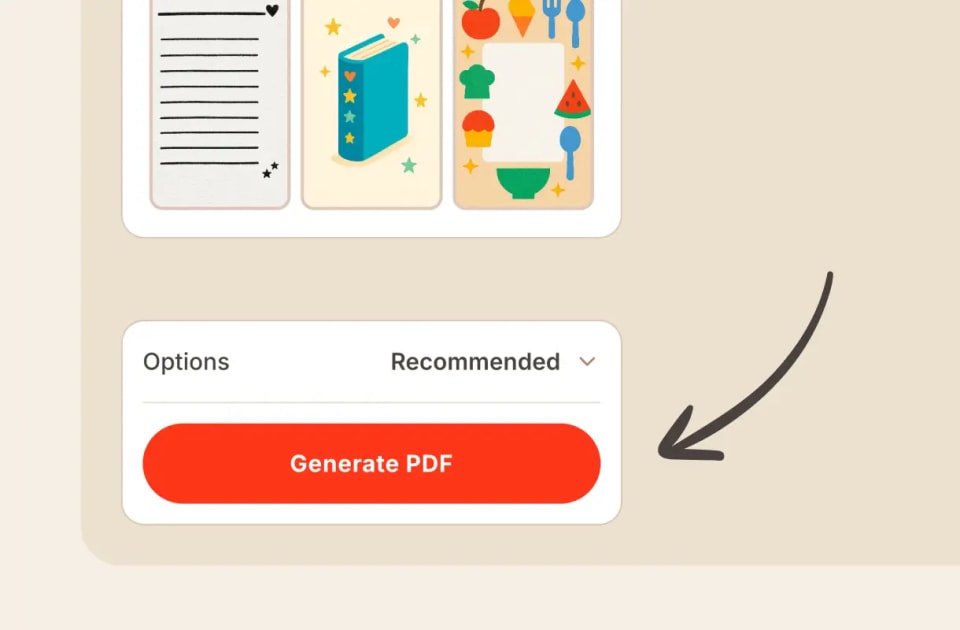
Above the generate button you'll see Options with a Recommended label when those defaults are still in place. Hit Generate PDF and you're done.
If you change anything, that label switches to Customized. You can always open Options again and use Reset to go back to the recommended setup.
Changing export options
Want a different format or setting? Open Options above the generate button.
File format
- PDF (default): the right choice for almost everyone. It prints at the correct size and keeps everything lined up.
- JPEG: a single image of your sheet. Useful when a self-service print shop or photo kiosk won't take a PDF and only accepts raster files like JPEG. It always has a white background (no transparency).
- PNG: also a sheet image, but with a transparent background around the labels. That's what you want for Cricut (Print Then Cut): Design Space can see where each label ends instead of treating the whole white page as one shape.
If you're not sure which to pick, stick with PDF. For Cricut sheet sizes in the tool, PNG is selected for you automatically.
Full bleed
Full bleed is off by default. Turn it on if you want a little extra print past each card's edge. That buffer means you can cut a bit outside the line without leaving a white sliver, and you're less likely to nick into the artwork itself. Handy when you're cutting by hand and don't trust your scissors to stay perfectly on the line.
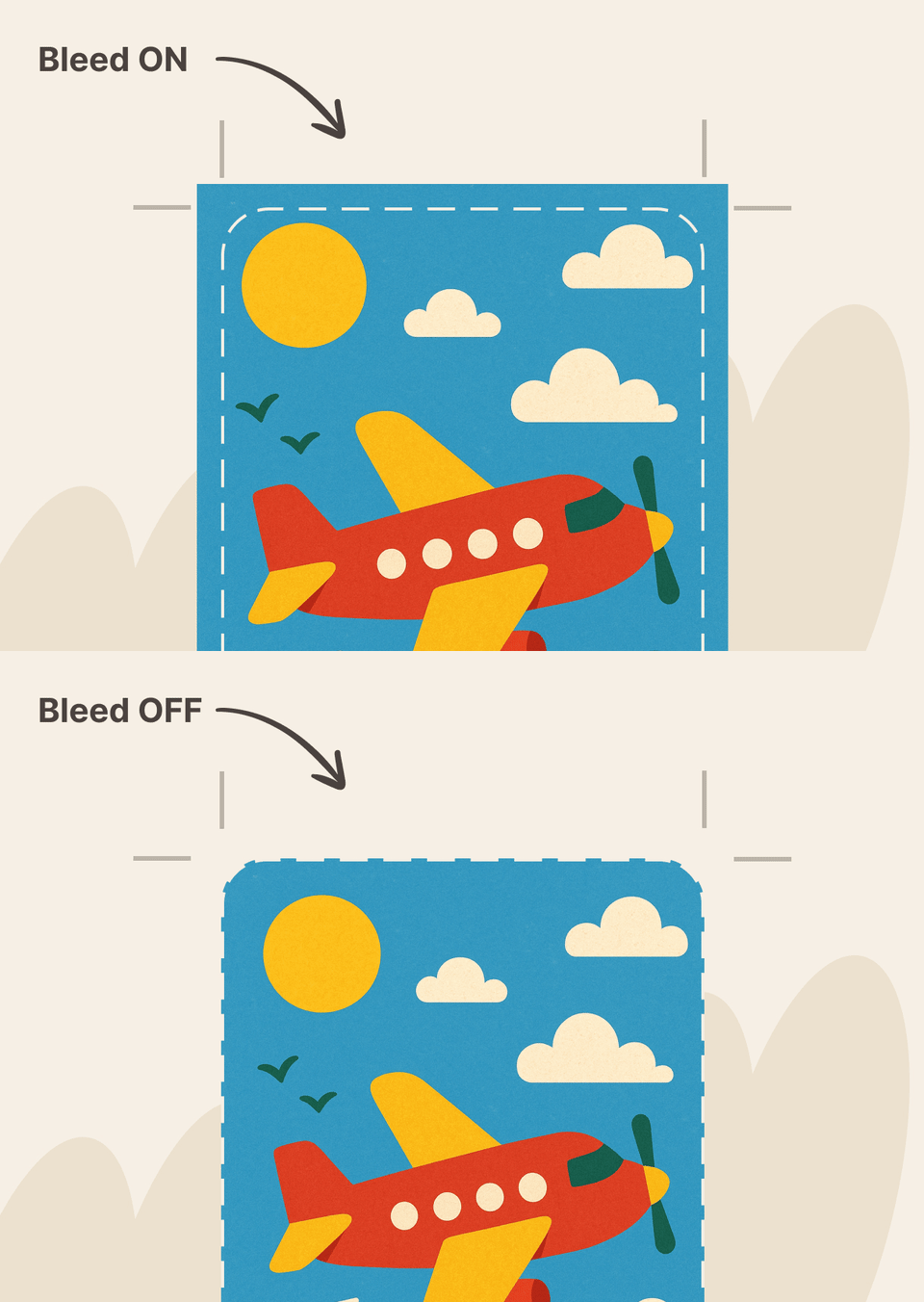
Turning on full bleed also switches rounded corners on, and keeps them on while full bleed is enabled. You can still use rounded corners with full bleed off. That control lives with the label style options below the preview.
Cut guides
Cut guides are on by default. They add dashed lines showing exactly where to cut, which helps if you're cutting by hand with scissors.
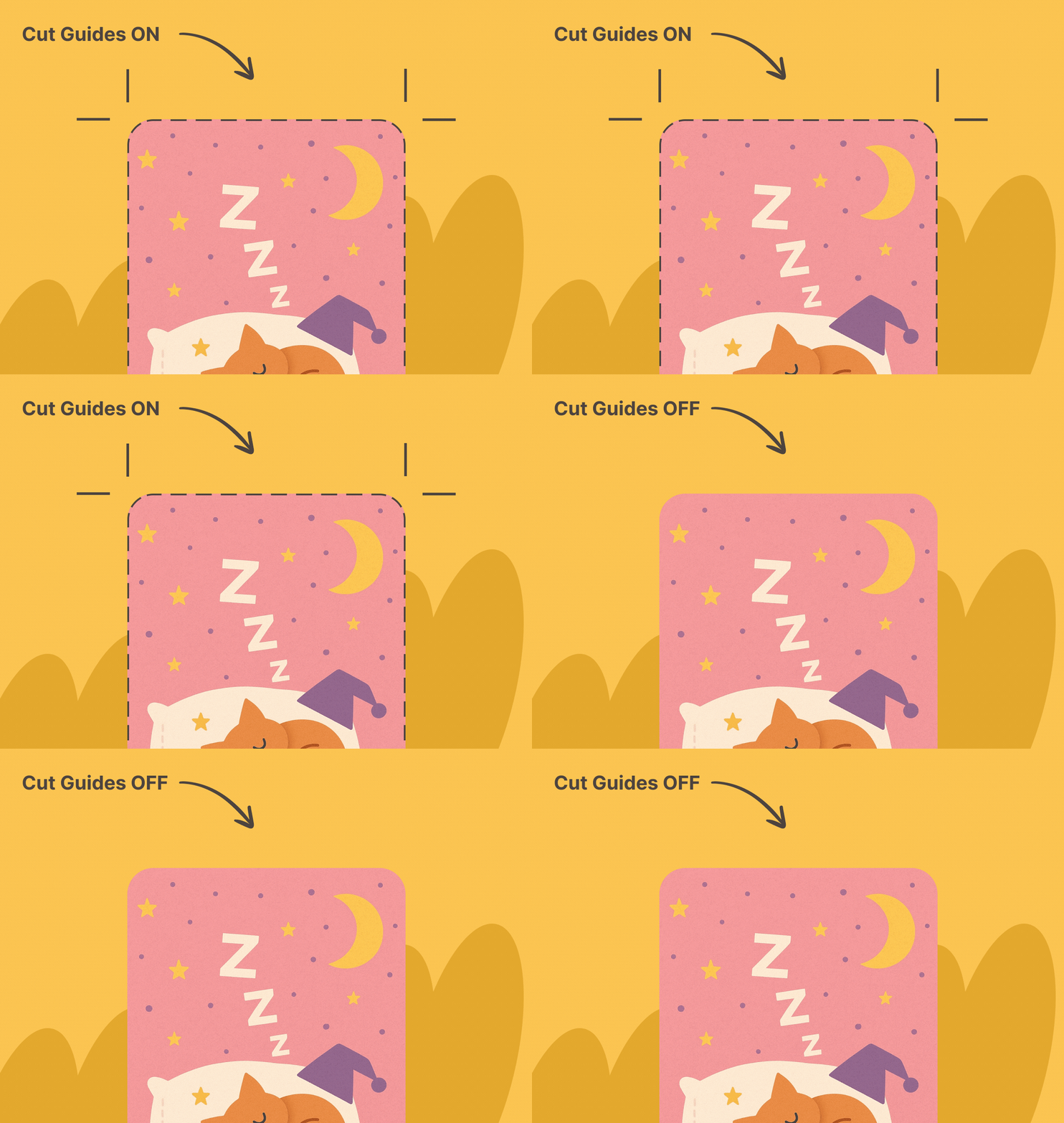
You can turn them off if you'd rather print a cleaner sheet without the dashed lines.
Generating your file
Once you're happy with the settings, select Generate PDF (or Generate JPEG / Generate PNG for your chosen format). Depending on your browser, the file will either download automatically or open in a new tab.