Add from your device
Add cover art you already have saved (album, podcast, or show artwork) or a personal photo from your phone, tablet, or computer.
Open the add image panel
From the editor, select the slot you want to fill.
Choose "From Computer" or "From Mobile"
Pick one or more files. You can select multiple images at once if you're filling several slots in one go.
Add it to the slot
Everything stays in your browser. Your files never leave your device.
Connect your Yoto library
If the cover art or image you want already lives in your Yoto library, such as art from a playlist you have made, you can pull it in directly instead of saving it to your device and adding it again.
Select "From Yoto Library"
Find it in the add image panel.
Log in
If you haven't already connected. This uses Yoto's own login. Yoto Labels does not store your password.
Browse your playlists
Pick the cover art you want to use.
This is the fastest option if you are labeling cards for playlists you have already built.
Browse our templates
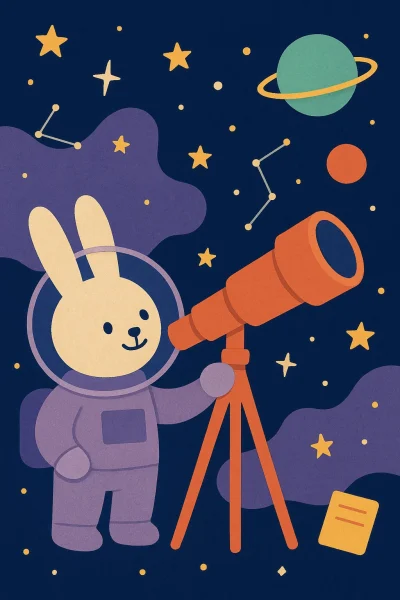
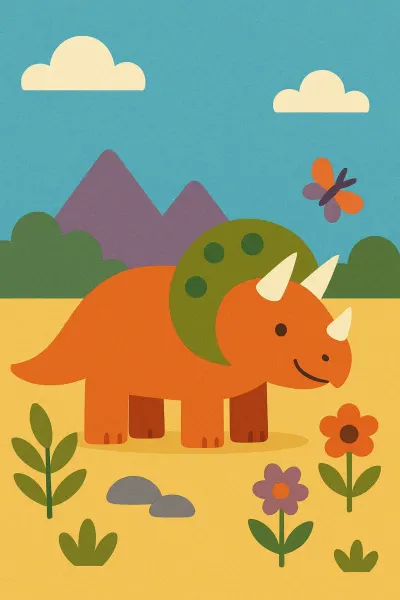
If you don't have your own image yet, or want something polished fast, browse the built-in template library.
Select "Browse templates"
Open it from the add image panel.
Search or scroll by category
Try bedtime stories, music, or podcasts.
Pick a template
It drops straight into your slot.
Most templates are free to use. Some are marked with a star and reserved for supporters, unlocked with a one-time payment.
Adding multiple images at once
If you're making several cards in one sitting, you don't need to repeat this process one slot at a time. Adding from your device supports selecting multiple files together, which fills your empty slots in order. This is the quickest way to batch a large MYO library in one session.