Yoto Labels logo - Free Yoto card label generator
ShowcaseAboutFeedback
Yoto Labels logo - Free Yoto card label generator
Support the toolThanks so much!307267Support307267
HomeGuidesShowcaseAboutFeedback
David and Elias

Thanks for thinking of supporting us

David & Elias

Support the tool307267

On this sheet

  • Pick your arrangement
  • Single
  • Split
  • Grid
  • Which one should I use?
  1. All Guides
  2. /How to use Yoto Labels

Choosing a label layout

DavidDavid
·Updated August 2026
Choosing a label layout

Once you have images added, the next step is deciding how they're arranged on the label. Yoto Labels gives you three layout options, and the right one depends on how many cards you're making and how you want each one to look. If a card holds more than one album or a mix of tracks, split and grid layouts let you show more than one cover at a glance instead of picking just one.

You'll find the layout switch just above the card preview: four clickable icons for single, vertical split, horizontal split, and grid, so you can swap compositions without leaving the editor.

Pick your arrangement

Your browser does not support embedded video.

Single

One image fills one label slot. This is the simplest option and the right choice for most cards, one cover image per card, printed and cut individually.
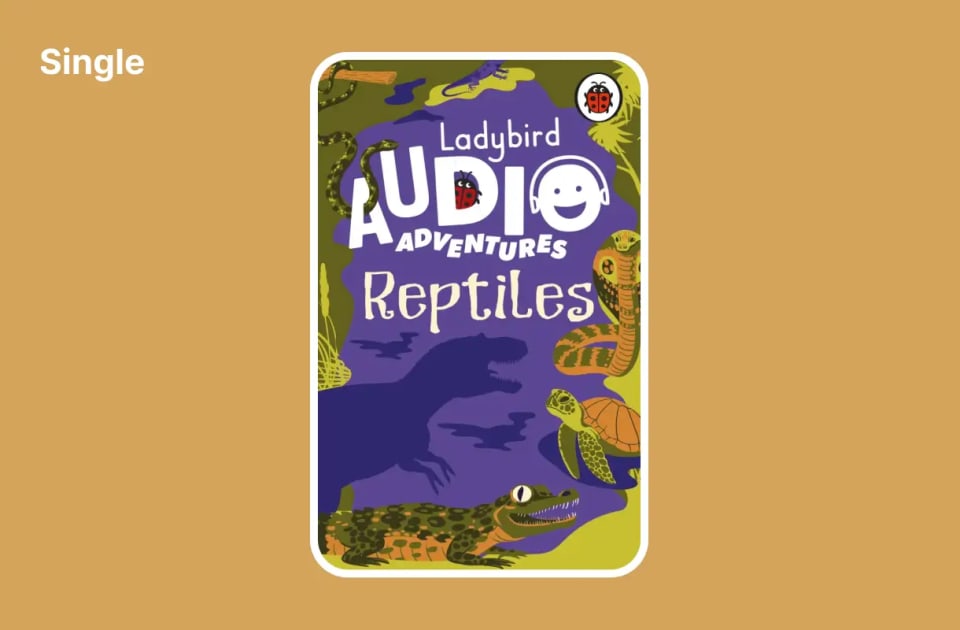
Single layout for a MYO label
  1. 1

    Select "Single"

    Choose it from the layout options above the card preview.

  2. 2

    Add or confirm your image

    Fill that slot the way you normally would.

  3. 3

    Repeat

    Do the same for each card you're making.

Split

Split layouts divide a slot so more than one image can appear on the same card, either as a vertical split (side by side) or a horizontal split (stacked top and bottom).
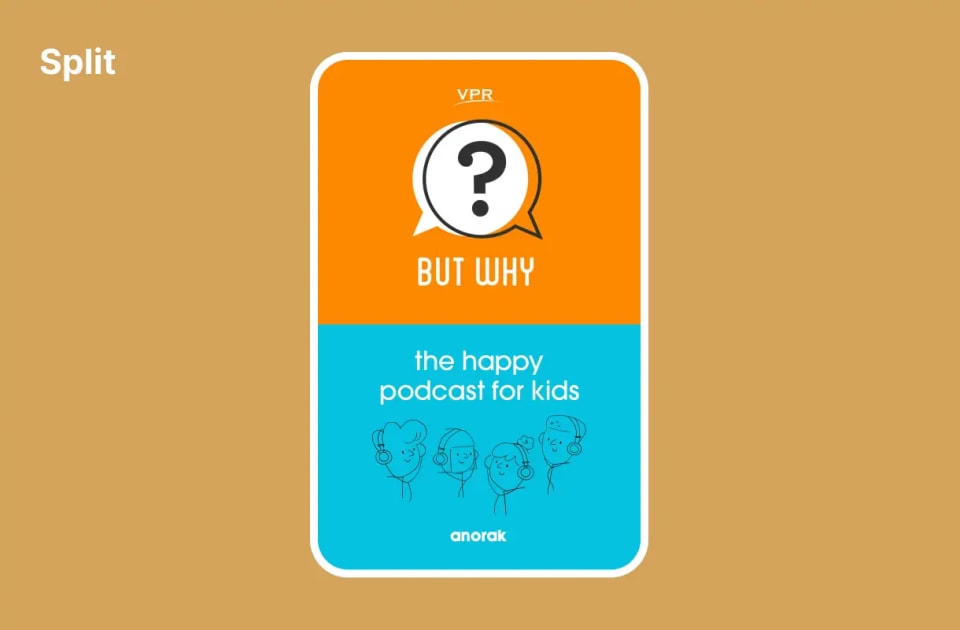
Split layout for a MYO label

Split is handy when one image doesn't tell the whole story. Say you've made a Yoto card with a handful of albums or a mix of tracks on it, rather than one single playlist cover. A single cover image would only represent one of those, but a split label lets you show two covers at once, so whoever's picking a card can tell at a glance it's a mixed one.

  1. 1

    Select Split

    Pick the vertical or horizontal split icon from the layout options.

  2. 2

    Add an image to each section

    Fill both halves of the card.

  3. 3

    Preview the result before moving on

    Split layouts can look busy with the wrong image pairing.

Note

Split layouts work best with images that are visually simple. Two busy or high-contrast images side by side (or stacked) can be hard to read at card size.

Grid

Grid works like split, but with room for more. Instead of two images, a grid layout arranges four in a 2×2 composition on the same label, so a card with a bigger mix, several albums or a broad playlist, can show more of what's on it at once.
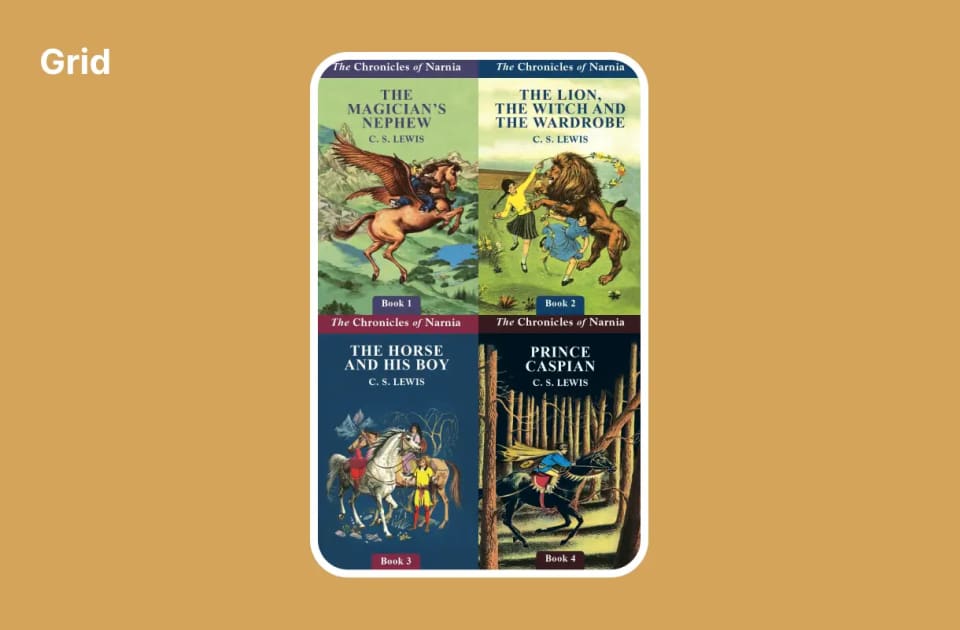
Grid layout for a MYO label
  1. 1

    Select "Grid"

    Choose it from the layout options above the card preview.

  2. 2

    Add an image to each of the four quadrants

    Fill every cell you want to show on the finished card.

  3. 3

    Preview the result

    Four images at card size is small, so simple, high-contrast images work best.

Note

Grid is best saved for cards where the mix really is that varied. If two covers already tell the story, split keeps things easier to read at a glance.

Which one should I use?

  • One image says it all: use Single.
  • A card mixes two things, like two albums: use Split.
  • A card mixes several things: use Grid.
Frequently asked questions

Next in how to use yoto labels
How to crop and edit images

Find the crop tool, fit artwork to Yoto card shape, and handle square covers before you print.

→
Free Yoto label maker

Make printable MYO labels

Add an image or pick a template. Get a PDF sized for Yoto cards, ready to print at home.

Create Labels →

Hi, I'm David. I built this free tool for my kid's MYO cards. Add a pic or pick a template, print a PDF that actually fits.

Make some labels →

The tool

  • Make labels
  • See what others made
  • Browse the guides

How-tos

  • Using the tool
  • Getting started with MYO
  • Making labels at home
  • Organizing your cards

Around here

  • Why this exists
  • Send feedback
  • Buy me a coffee
  • Privacy
© 2026 YotoLabels.comNot affiliated with Yoto Ltd.
Yoto Labels logo - Free Yoto card label generator
ShowcaseAboutFeedback
Yoto Labels logo - Free Yoto card label generator
Support the toolThanks so much!307267Support307267
HomeGuidesShowcaseAboutFeedback
David and Elias

Thanks for thinking of supporting us

David & Elias

Support the tool307267

On this sheet

  • Pick your arrangement
  • Single
  • Split
  • Grid
  • Which one should I use?
  1. All Guides
  2. /How to use Yoto Labels

Choosing a label layout

DavidDavid
·Updated August 2026
Choosing a label layout

Once you have images added, the next step is deciding how they're arranged on the label. Yoto Labels gives you three layout options, and the right one depends on how many cards you're making and how you want each one to look. If a card holds more than one album or a mix of tracks, split and grid layouts let you show more than one cover at a glance instead of picking just one.

You'll find the layout switch just above the card preview: four clickable icons for single, vertical split, horizontal split, and grid, so you can swap compositions without leaving the editor.

Pick your arrangement

Your browser does not support embedded video.

Single

One image fills one label slot. This is the simplest option and the right choice for most cards, one cover image per card, printed and cut individually.

Single layout for a MYO label
  1. 1

    Select "Single"

    Choose it from the layout options above the card preview.

  2. 2

    Add or confirm your image

    Fill that slot the way you normally would.

  3. 3

    Repeat

    Do the same for each card you're making.

Split

Split layouts divide a slot so more than one image can appear on the same card, either as a vertical split (side by side) or a horizontal split (stacked top and bottom).

Split layout for a MYO label

Split is handy when one image doesn't tell the whole story. Say you've made a Yoto card with a handful of albums or a mix of tracks on it, rather than one single playlist cover. A single cover image would only represent one of those, but a split label lets you show two covers at once, so whoever's picking a card can tell at a glance it's a mixed one.

  1. 1

    Select Split

    Pick the vertical or horizontal split icon from the layout options.

  2. 2

    Add an image to each section

    Fill both halves of the card.

  3. 3

    Preview the result before moving on

    Split layouts can look busy with the wrong image pairing.

Note

Split layouts work best with images that are visually simple. Two busy or high-contrast images side by side (or stacked) can be hard to read at card size.

Grid

Grid works like split, but with room for more. Instead of two images, a grid layout arranges four in a 2×2 composition on the same label, so a card with a bigger mix, several albums or a broad playlist, can show more of what's on it at once.

Grid layout for a MYO label
  1. 1

    Select "Grid"

    Choose it from the layout options above the card preview.

  2. 2

    Add an image to each of the four quadrants

    Fill every cell you want to show on the finished card.

  3. 3

    Preview the result

    Four images at card size is small, so simple, high-contrast images work best.

Note

Grid is best saved for cards where the mix really is that varied. If two covers already tell the story, split keeps things easier to read at a glance.

Which one should I use?

  • One image says it all: use Single.
  • A card mixes two things, like two albums: use Split.
  • A card mixes several things: use Grid.
Frequently asked questions

Next in how to use yoto labels
How to crop and edit images

Find the crop tool, fit artwork to Yoto card shape, and handle square covers before you print.

→
Free Yoto label maker

Make printable MYO labels

Add an image or pick a template. Get a PDF sized for Yoto cards, ready to print at home.

Create Labels →

Hi, I'm David. I built this free tool for my kid's MYO cards. Add a pic or pick a template, print a PDF that actually fits.

Make some labels →

The tool

  • Make labels
  • See what others made
  • Browse the guides

How-tos

  • Using the tool
  • Getting started with MYO
  • Making labels at home
  • Organizing your cards

Around here

  • Why this exists
  • Send feedback
  • Buy me a coffee
  • Privacy
© 2026 YotoLabels.comNot affiliated with Yoto Ltd.